Key Takeaways
Shopify 2FA adds a critical second layer of security by requiring a password and a verification method.
The most secure setup uses an authenticator app (like Authy or Google Authenticator), not SMS alone.
Enabling 2FA on Shopify takes minutes and should be mandatory for all staff accounts.
Always store recovery codes securely to avoid getting locked out of your store.
Shopify 2FA can be reset or disabled, but should only be done carefully and temporarily.
Most 2FA issues (codes not working, lost devices) can be resolved quickly with the right setup.
For teams, enforcing 2FA and limiting staff permissions is essential to prevent unauthorised access.
2FA is just one layer — strong passwords, access control, and monitoring are equally important.
What Is Shopify 2FA and Why It Matters
Shopify 2FA (two-factor authentication) is a security feature that requires a password plus a second verification method, such as an app or device, to log in. It protects your store from unauthorised access, even if your password is compromised.
Passwords can be guessed, stolen, or reused. 2FA makes your store harder to compromise by requiring something you know (your password) and something you have (like a code from your phone or security key).
And here’s the real reason it matters: most Shopify attacks aren’t hyper-sophisticated — they’re opportunistic. Bots scanning for reused passwords, phishing emails targeting store owners, or staff accounts left unsecured.
If someone logs into your Shopify admin panel, they can change prices, reroute payouts, refund themselves orders, or delete your whole catalogue.
As ecommerce businesses grow, security becomes much more than just enabling a single setting. Managing staff permissions, monitoring integrations, maintaining apps, and reducing operational risks all become part of maintaining a healthy store, which is why many brands rely on ongoing Shopify support and optimisation services to help keep their stores secure and running smoothly long-term.
How Shopify 2FA Works (Methods Explained)
Shopify 2FA works by requiring a second verification step after your password, typically using an authenticator app, SMS code, or security key. This ensures only authorised users can access your store.
Shopify supports several types of 2FA methods — each with different levels of convenience and security.
Here’s what you can choose:
| Method | Description | Recommended For |
|---|---|---|
| Authenticator App | Time-based code via app like Google Authenticator or Authy | Most users – secure + portable |
| SMS Text Message | Code sent to your phone via SMS | Backup only – vulnerable to SIM swap |
| Security Key (FIDO2) | Physical USB/NFC device like YubiKey | Power users, high-risk admins |
💡Pro Tip: Use an authenticator app and keep a recovery code saved in a password manager.
Shopify 2FA vs MFA (What’s the Difference?)
Shopify 2FA (two-factor authentication) is a form of multi-factor authentication (MFA) that uses exactly two verification factors, while MFA can include two or more layers of security such as apps, devices, or biometrics.
In practice, Shopify uses 2FA as its standard approach to account security. When you enable 2FA, you’re adding a second factor — typically a time-based code from an authenticator app, an SMS code, or a security key — on top of your password.
MFA is a broader concept. It can include:
Something you know (password)
Something you have (phone, authenticator app, security key)
Something you are (biometrics like fingerprint or face ID)
So What Does Shopify Actually Use?
Shopify = 2FA by default (two-step verification)
Security keys (FIDO2) technically bring it closer to MFA-level security
Shopify Plus stores often enforce stricter access controls, but still within a 2FA framework
Why This Difference Matters
For most ecommerce stores, Shopify’s 2FA is more than enough to prevent unauthorised access. The biggest risk isn’t a lack of advanced authentication — it’s weak passwords, shared logins, or missing 2FA entirely.
💡Don’t overcomplicate it. Enabling Shopify 2FA correctly (with an authenticator app and backup access) gives you the vast majority of the protection you actually need.
Best Authenticator Apps for Shopify
The best authenticator apps for Shopify are Google Authenticator, Authy, and Microsoft Authenticator, as they provide secure, time-based codes for login verification.
Popular options include:
Google Authenticator – simple, widely used, but no cloud backup
Authy – supports multi-device sync and backups (recommended for teams)
Microsoft Authenticator – integrates well with Microsoft accounts
💡Recommendation: Use Authy if you manage multiple devices or staff accounts.
How to Enable 2FA on Shopify (Step-by-Step Guide)
To enable 2FA on Shopify, go to Settings > Users, select your account, and turn on two-step authentication using an authenticator app or SMS. The setup takes just a few minutes and significantly improves security.
Here’s how to do it:
Go to your Shopify Admin > Settings > Users and Permissions
Find your account and click “Enable two-step authentication”
Choose your method (Authenticator App or SMS)
Scan the QR code or enter the setup key into your app
Enter the code generated by the app to verify
Save your recovery codes somewhere safe
That’s it. The next time you (or your staff) log in, Shopify will ask for a 2FA code after the password.

Shopify 2FA Setup Best Practices
To set up Shopify 2FA securely, use an authenticator app, store recovery codes safely, and avoid relying solely on SMS authentication.
Best practices:
Use authenticator apps instead of SMS
Store recovery codes in a password manager
Enable 2FA for all staff accounts
Avoid sharing login credentials
Set up backup authentication methods
Managing 2FA Inside Your Shopify Store
Managing Shopify 2FA involves controlling staff access, storing recovery codes, and ensuring all users have secure authentication methods enabled. It’s essential for teams and growing stores.
Once enabled, 2FA isn’t “set and forget”. You’ll need to manage users, devices, and backup access.
Staff accounts: You can require 2FA across your store settings — especially important as your team grows (covered in more detail below).
Collaborators & Shopify Partners: If you’ve shared access with Shopify Partners like us, make sure 2FA is enforced on your side. Collaborator accounts are handy, but you don’t always know how many people might access your store through them. 2FA adds a crucial layer of control.
Recovery codes: Store these in a secure password manager. These are your lifeline if your device dies.
Multiple devices: Authenticator apps like Authy allow multi-device syncing. Google Authenticator does not.
Account recovery: Shopify Support may need ID verification if all recovery options fail.
Shopify 2FA for Teams and Staff Accounts
Shopify allows store owners to enforce 2FA for staff accounts, helping prevent unauthorised access across teams and collaborators.
For teams:
Require 2FA for all staff
Limit permissions by role
Regularly audit access
Remove inactive users
💡 On Shopify Plus, this becomes even more critical due to higher access levels and risk exposure.
How to Reset 2FA in Shopify
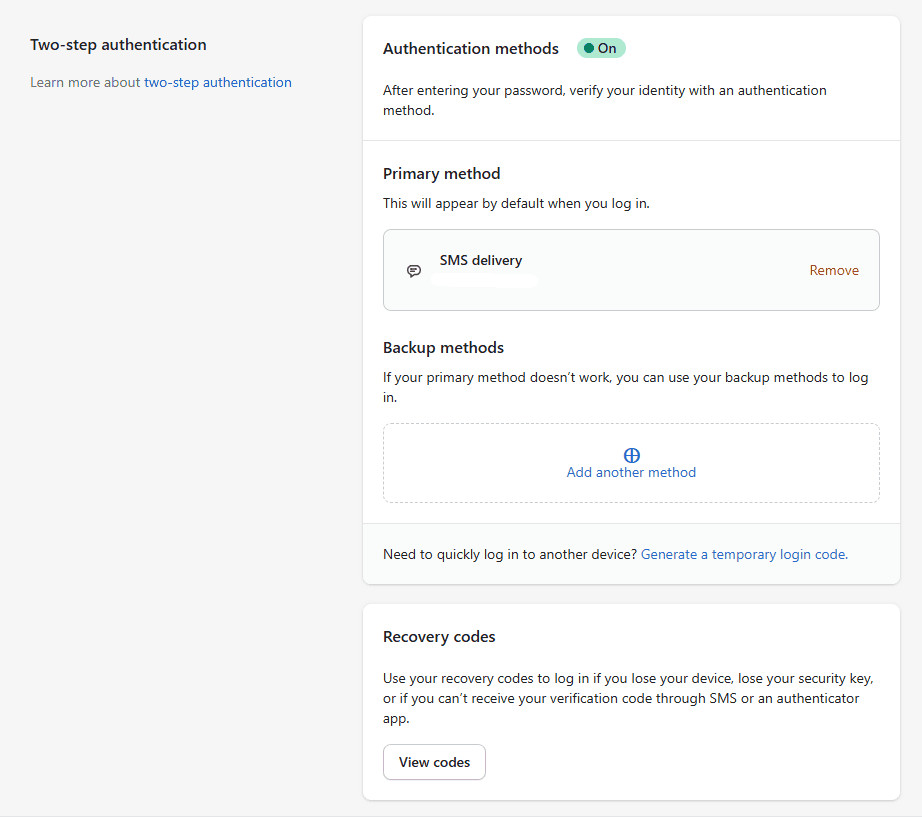
To reset Shopify 2FA, use a recovery code or contact Shopify Support if you’ve lost access to your device. Resetting allows you to reconnect a new authenticator or phone.
Lost your phone? New device? You’ll need to reset your 2FA method — without locking yourself out.
Option 1:
Log in using a recovery code (you did save it, right?)
Go to Settings > Security and disable 2FA
Re-enable it with your new device
Option 2:
Can’t log in at all? Contact Shopify Support
Be ready to verify your identity (govt. ID, billing info, etc.)
💡Pro Insight: If you're managing a team, set up a protocol for what happens when staff switch phones or lose access.
How to Disable 2FA on Shopify (Safely)
To turn off Shopify 2FA, go to Settings > Security and disable two-step authentication, confirming with your current code. However, disabling 2FA is not recommended unless necessary.
If you must disable 2FA:
Log into your account
Go to Settings > Security
Click “Disable two-step authentication”
Confirm with your current 2FA code
Only disable 2FA temporarily — and only if you have a plan to re-enable it immediately after troubleshooting.
Troubleshooting Shopify 2FA Issues
Most Shopify 2FA issues are caused by device access problems, time sync errors, or setup mistakes, and can usually be fixed quickly using recovery codes or settings adjustments.
2FA can be annoying when it breaks. But most issues have simple fixes.
| Problem | Fix |
|---|---|
| Lost access to device | Use a recovery code or contact support |
| Authenticator codes not working | Check time sync on your device (time-based codes need it accurate) |
| Staff can’t log in | Ensure they’ve accepted the invite and enabled 2FA on their end |
| Can’t re-enable 2FA after reset | Clear old app connections, re-scan the QR code |
💡Pro Tip: Keep a backup 2FA method (e.g. Authenticator + SMS or security key) to reduce downtime.
Shopify 2FA Recovery Tips (Avoid Lockouts)
To avoid getting locked out of Shopify, always store recovery codes, use backup authentication methods, and keep your device access up to date.
Quick tips:
Save recovery codes in multiple secure places
Use an authenticator app with backup (e.g. Authy)
Keep at least one secondary login method
Update 2FA when switching devices
Advanced Shopify Security Stack (Beyond 2FA)
Shopify 2FA is a strong first layer of security, but full protection requires additional measures like strong passwords, limited staff access, and login monitoring.
Think of it as your front lock. Now build a security system around it.
Use unique, strong passwords with a password manager (no “Store123!” nonsense)
Turn on email alerts for new logins or changes
Limit staff permissions — not everyone needs full access
Add device management: log out of old sessions regularly
Implement theme and code change logging if you're doing dev work
Consider third-party fraud detection apps for storefront and checkout monitoring
💡Insight: Shopify is secure — until someone logs in with your credentials. Most attacks aren’t code-level hacks. They’re user-level lapses.
2FA Is a No-Brainer, But It's Just Step One
Two-factor authentication won’t stop a DDoS attack, write your refund policy, or clean up your product images. But it will stop 95% of the problems that lead to panic-mode emails like: “My store was hacked — what do I do?”
Think of 2FA as your store’s security doorman. It won’t run the shop, but it’ll make sure no shady characters get past the front door. And in an industry where a single login can control thousands in inventory, ads, or payouts — that doorman is worth gold.
Set it up. Store the recovery codes. Train your staff. Then move on to building a security culture that goes beyond just clicking a button.